
Appearance
Custom autofills
Custom autofills control how each field gets its value. You can extract text with a CSS selector, read page metadata, set a default value, or use AI.
Open a destination, hover over a field, and choose Set autofill from its ... menu. Choose an autofill type from Select autofill. If the field has no autofills yet, click Set default value to add one first.
Settings belong to the current destination. A selector configured for one destination also runs when you use that destination on another website. Use separate destinations when you need different rules for different sites.
These rules run from the fill button in the Add or Update form. Bulk add uses its own AI extraction workflow.
CSS selectors and the element picker
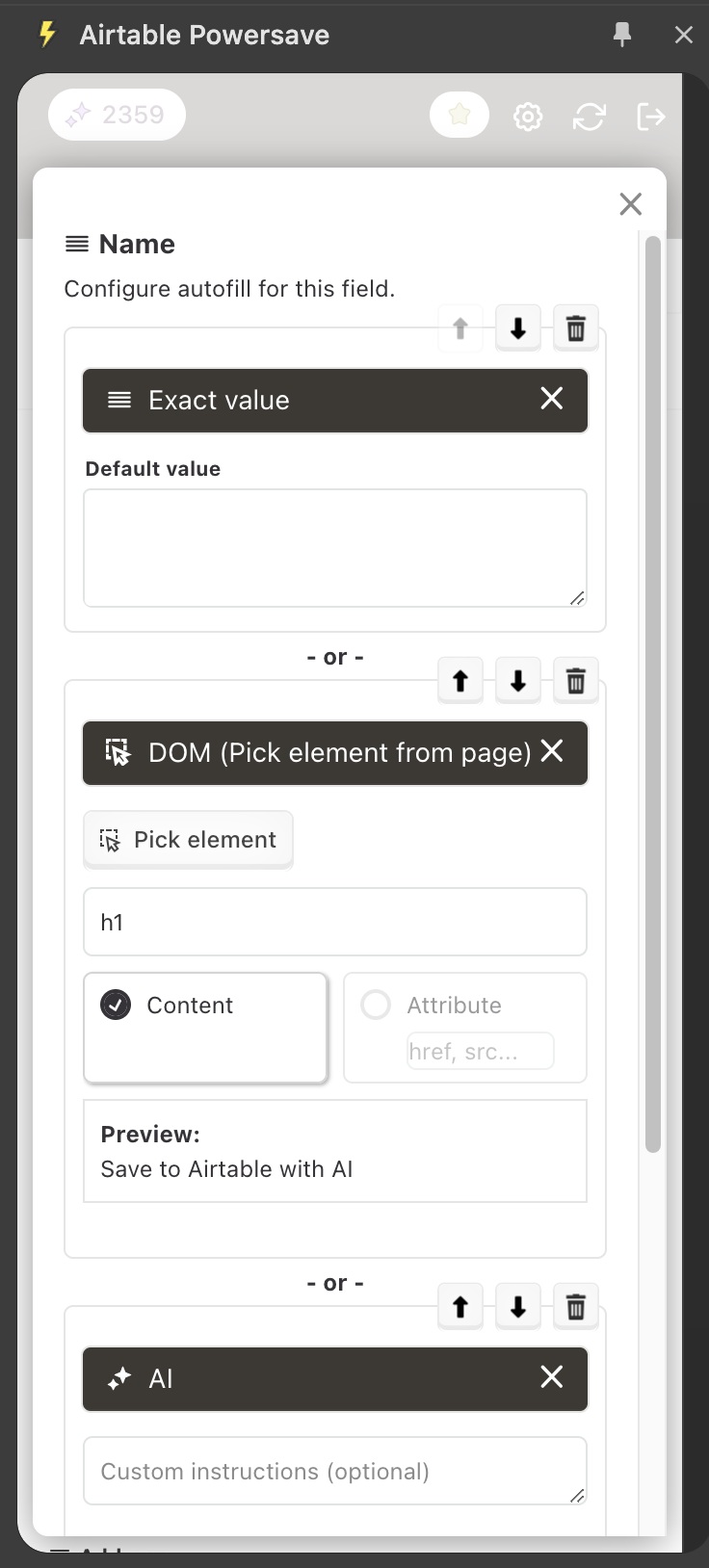
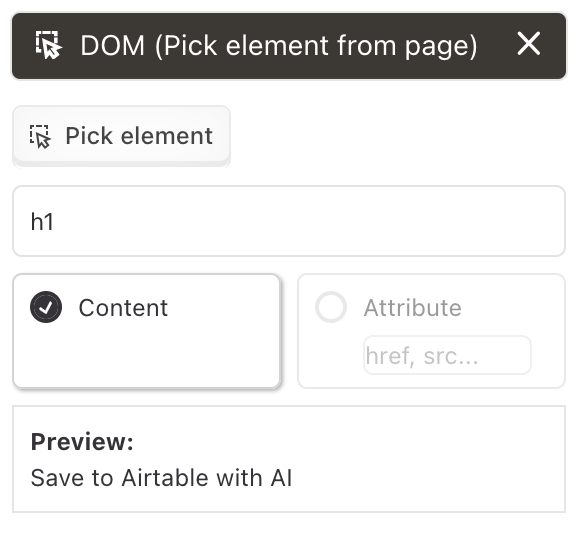
The DOM (Pick element) autofill reads an element from the current page. You can enter a CSS selector yourself or select an element visually.
- Open the page you want to extract from and choose Set autofill for the destination field.
- Select DOM (Pick element).
- Click Pick element, then select the element on the page. Alternatively, type a selector such as
h1,.product-price, or#article-titlein the DOM selector input. - Choose Content to read the element's text. Choose Attribute to read an attribute, such as
hreffor a link orsrcfor an image. - Check Preview, then close the settings and run the fill button in the form toolbar.
Only the first element matching the selector is read. For example, a.product-link with Attribute set to href reads the first matching link's URL. Make the selector more specific if the preview shows the wrong value.
If the element is missing or the selector is invalid, this autofill returns no value and the next fallback can run. Test the rule on a few pages that share the same layout. A website redesign can change its selectors.
Fallbacks
Add more autofills with the + button. They run in order until one returns a value. Use the up and down arrows to change the order, or the trash button to remove a rule.
For example, try a CSS selector first, then Website meta, then AI. You can put Exact value last to supply a default when the earlier rules return nothing.
Website meta
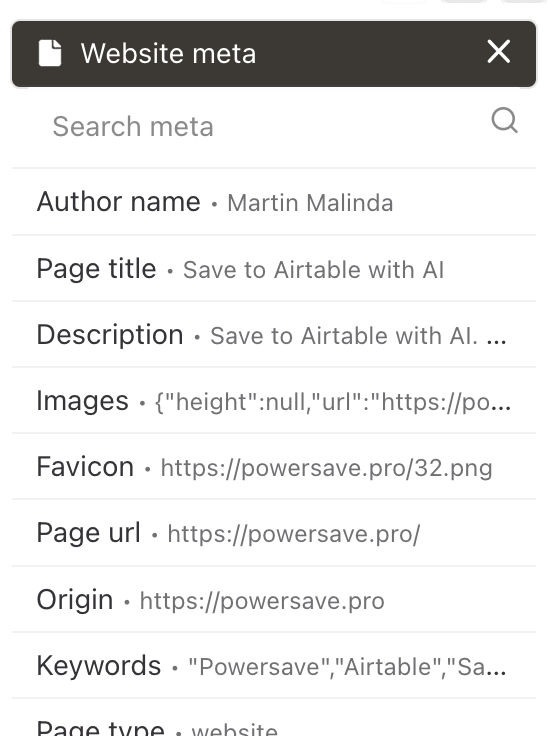
Choose Website meta to use information the page publishes in its metadata, including meta tags and structured data. The available values depend on the current page.
AI
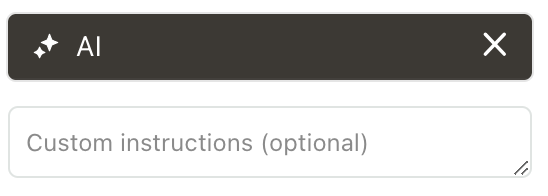
Choose AI and enter optional instructions for this field. For example, ask it to summarize an article in one sentence. AI can be a fallback after a selector or metadata rule. If an earlier rule returns a value, the AI step is skipped for that field.
AI autofill requires a Powersave login. See AI autofill for the main AI workflow.
Use one AI rule per field. Powersave uses the first AI rule for that field; adding another AI rule does not create another AI attempt. If you are signed out, AI rules are skipped and the remaining non-AI fallbacks can run.
Exact value
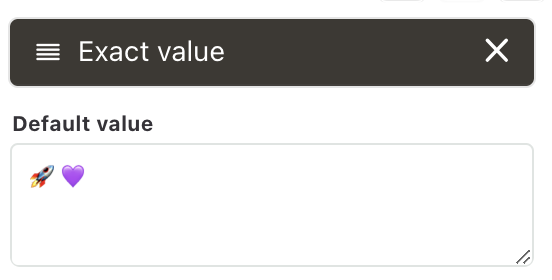
Choose Exact value to enter a fixed value, such as a status or category. Use it on its own or as the final fallback. Attachment fields do not support an exact default value.
Other autofill types
- Page content extracts the page's main text. Rich text fields can receive its Markdown content.
- Screenshot is available for attachment fields when the destination supports uploads.
Text search with a regular expression
Choose Text Search (Regex) to extract a value from the page's text. Enter the pattern in Regular Expression and check Preview.
Put the value you want to save in the first capture group. For example, Price:\s*([0-9.]+) extracts 29.99 from Price: 29.99. Enter the pattern itself, without surrounding / characters. A capture group keeps the preview and the saved result consistent.
This rule reads the first match. Use a CSS selector instead when the same text appears in several places and you need to target a specific element.